
SiteMetrics by Codengine
Free WordPress plugin · Version 1.0.9
Website audit and SEO reports, made simple.
SiteMetrics by Codengine is a free WordPress plugin for website audits and SEO reporting. It brings PageSpeed Insights, Google Search Console, Google Analytics 4 and Ahrefs Site Audit into one dashboard, and exports reports to Excel or Google Sheets — without leaving WordPress admin.
✓ PageSpeed + Search Console ✓ GA4 + Ahrefs ✓ Excel & Google Sheets
✓ PageSpeed + Search Console
✓ GA4 + Ahrefs
✓ Excel & Google Sheets

Quick setup
Install, connect the services you use and run your first report in minutes.

Easy to read
Speed, search, traffic and site health on one Overview screen.

Inside WordPress
No separate tool or extra login — everything lives in your admin.

Free to use
Free on WordPress.org, with built-in Help & Docs to get you started.
Why SiteMetrics by Codengine
A clear view of how your website performs
SiteMetrics by Codengine connects your WordPress dashboard to Google PageSpeed Insights, Google Search Console, Google Analytics 4 and Ahrefs. It shows speed, search and traffic numbers on one Overview screen, and turns every run into a report you can download, revisit and compare.
No separate tool, no extra login — it all lives in WordPress admin under SiteMetrics.

Website owners
See speed, search and traffic numbers without leaving WordPress or reading raw data.

WordPress administrators
Schedule regular reports for the sites you manage and keep a history in the admin area.

Developers
Check scores, errors and rankings before and after changes, then compare the results.

SEO and marketing teams
Track clicks, rankings, users and site health, and share reports in Excel or Google Sheets.
Features in version 1.0.9
Four data sources. One WordPress dashboard.
Connect only the services you use. Each one gets its own section on the Overview, a details page with the full data and its own tab in every report.
PageSpeed Insights
Performance, Accessibility, Best Practices and SEO scores for mobile and desktop, with Core Web Vitals lab metrics and a Lighthouse audit details page for every report.
- Performance, Accessibility, Best Practices and SEO scored 0–100
- Mobile and desktop analysed in parallel to save time
- FCP, LCP, TBT, CLS and Speed Index with target values
- Audit details page with Opportunities, Diagnostics and Passed audits
- API key sent in a request header, never in the URL
Mobile · Desktop · FCP · LCP · TBT · CLS


Google Search Console
Clicks, impressions, CTR and average position with daily trends, plus devices, countries, top queries, top pages, sitemaps and index status.
- Clicks, impressions, average CTR and position with a daily trend
- Breakdowns by device, country, top queries and top pages
- Sitemap status: submitted, last read, errors and warnings
- Index status of your home page and top pages (URL Inspection)
- Choose 7 days, 28 days, 3, 6 or 12 months
Read-only · Queries · Pages · Indexing


Google Analytics 4
Active users, new users, sessions and engagement rate with daily trends, plus channels, landing pages, events, browsers and top pages.
- Active users, new users, sessions and engagement rate with daily trends
- User and traffic acquisition by channel
- Landing pages, events, browsers and top pages
- Your GA4 properties are listed and matched automatically
- Uses the same period selector as Search Console
Read-only · Users · Sessions · Channels


Ahrefs Site Audit
Health Score, crawled URLs and URLs with errors from your Ahrefs Site Audit project, with top issues and HTTP status codes.
- Health Score, crawled URLs and URLs with errors
- Issue distribution and the top issues to fix
- HTTP status counts from crawled pages
- Works with your existing Site Audit project (API v3)
- Page requests are capped to protect your API units
API v3 · Health Score · Issues


Reports
Generate a report in one click, download it as Excel or Google Sheets, keep recent reports and compare any two.
- One run collects every connected service
- Download an .xlsx workbook or create a Google Spreadsheet
- A tab for each connected integration
- Your five most recent reports stay on the Reports page
- Compare any two reports to see what improved or declined
Excel · Google Sheets · Compare

Settings
Schedule automatic reports, choose their period and format, set email alerts and decide what happens on uninstall.
- Daily, weekly or monthly automatic reports, off by default
- Each schedule has its own data period and format
- Email alert if a scheduled report fails
- Keep or delete report files when you uninstall
- Works on single sites and multisite networks
Schedules · Alerts · Multisite

Reports and automation
Share the numbers without copying them by hand
Every report collects all connected services in one run. Keep a history, compare results, let reports run on a schedule and get told when something needs attention.
Excel and Google Sheets
Download an .xlsx workbook or create a Google Spreadsheet, with a tab for each connected integration.
.xlsx · Google Sheets

History and comparison
Your five most recent reports stay on the Reports page. Compare any two to see what improved or declined.
Last 5 reports · Compare

Automatic reports
Run reports daily, weekly or monthly with their own data period and format. Off by default.
Daily · Weekly · Monthly
Integration health
See at a glance whether each integration is healthy, and get an email if a scheduled report fails.
Status · Email alerts
Secure by design
Google access is read-only. API keys, secrets and tokens are masked and stored encrypted in your database.
Read-only · Encrypted

Built-in Help & Docs
Step-by-step guides for every integration, reports, scheduling and troubleshooting, inside the plugin.
Guides · Troubleshooting
Details for every integration
Open any section of the Overview to see the full tables behind it, for any saved report.
Details pages · Any report

Honest report status
Every report lists which integrations were included or skipped, and why. Missing values show as Not available, never estimated.
No estimates · Clear status
You stay in control
Choose whether report files are kept or deleted when you uninstall. Works on single sites and multisite networks.
Uninstall options · Multisite
Product walkthrough
See How SiteMetrics by Codengine Works
From connecting your services to comparing reports, here is the complete workflow — every step is available in version 1.0.9.
- Open SiteMetrics from the WordPress admin menu.
- Connect PageSpeed Insights, Google and Ahrefs on Integrations.
- Click Generate report — every connected service runs in one go.
- Review speed, search and traffic numbers on the Overview.
- Choose Excel report or Google Spreadsheet.
- Open the history and Compare two reports.
- Find answers in Help & Docs.

Product screenshots
Take a look inside
Real screens from version 1.0.9.
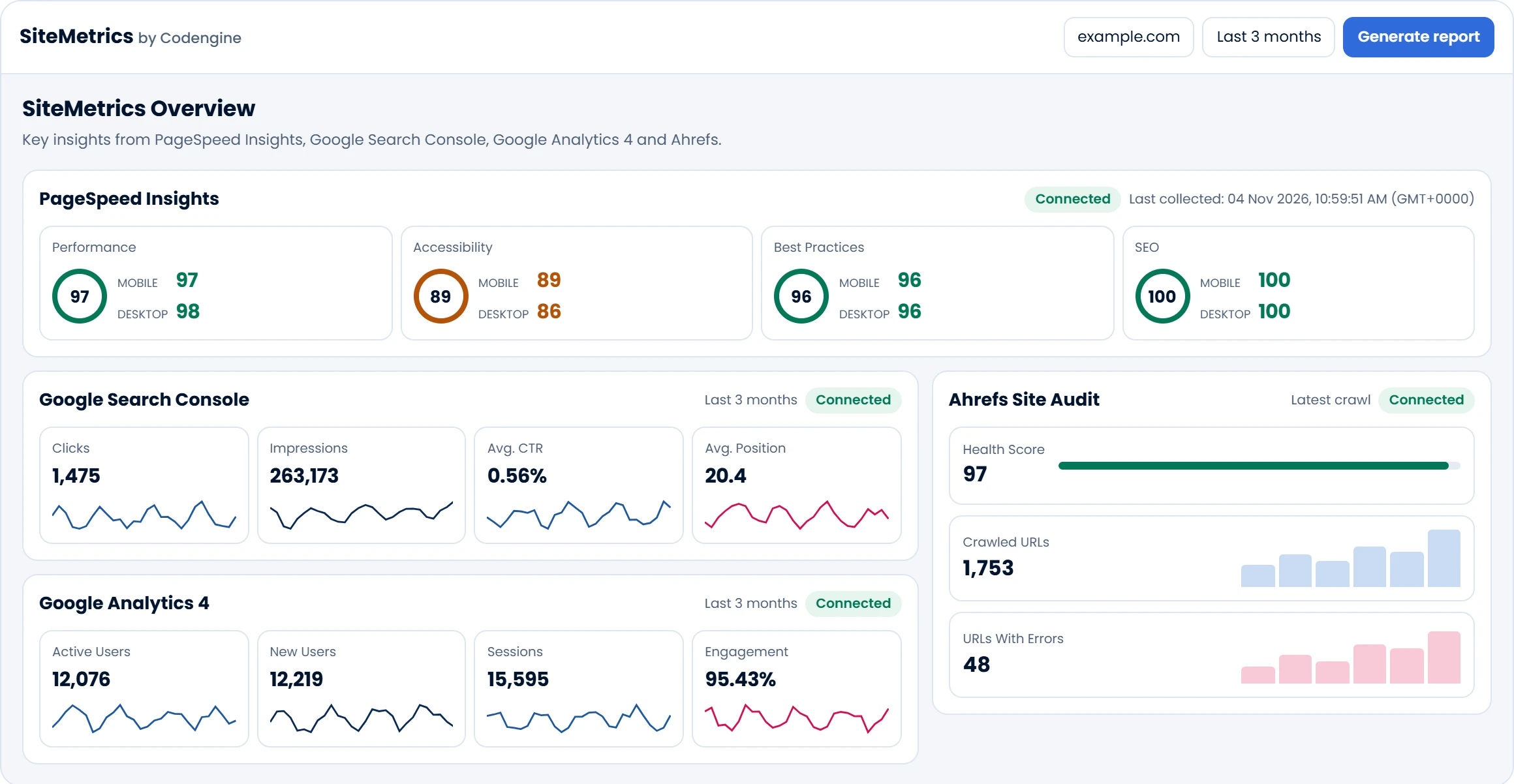
Overview: PageSpeed scores and Search Console, GA4 and Ahrefs at a glance.
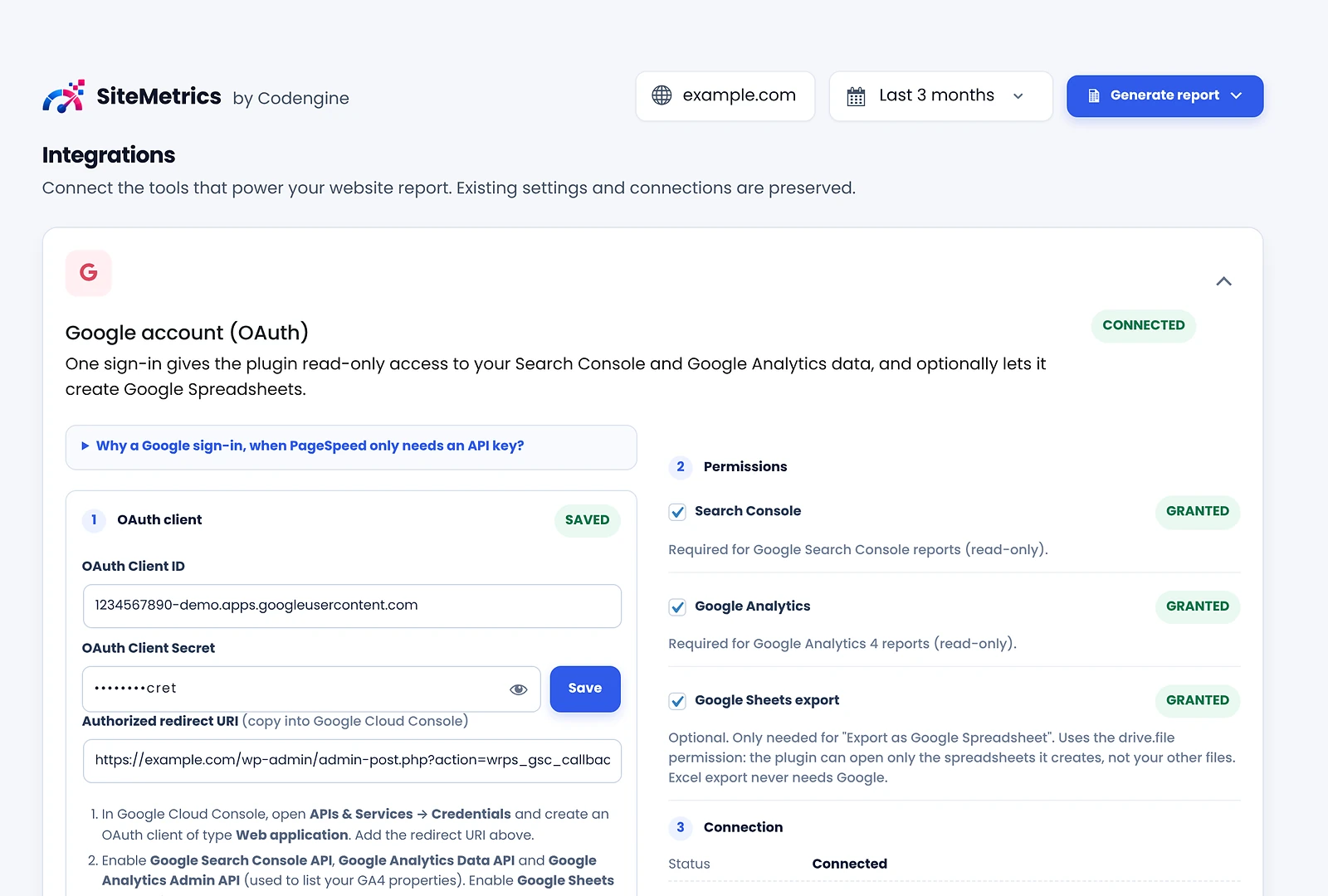
Connect Google with read-only access and add your PageSpeed and Ahrefs keys (keys are masked).
Your five most recent reports, with Open, Compare and Details, and export to Excel or Google Sheets.
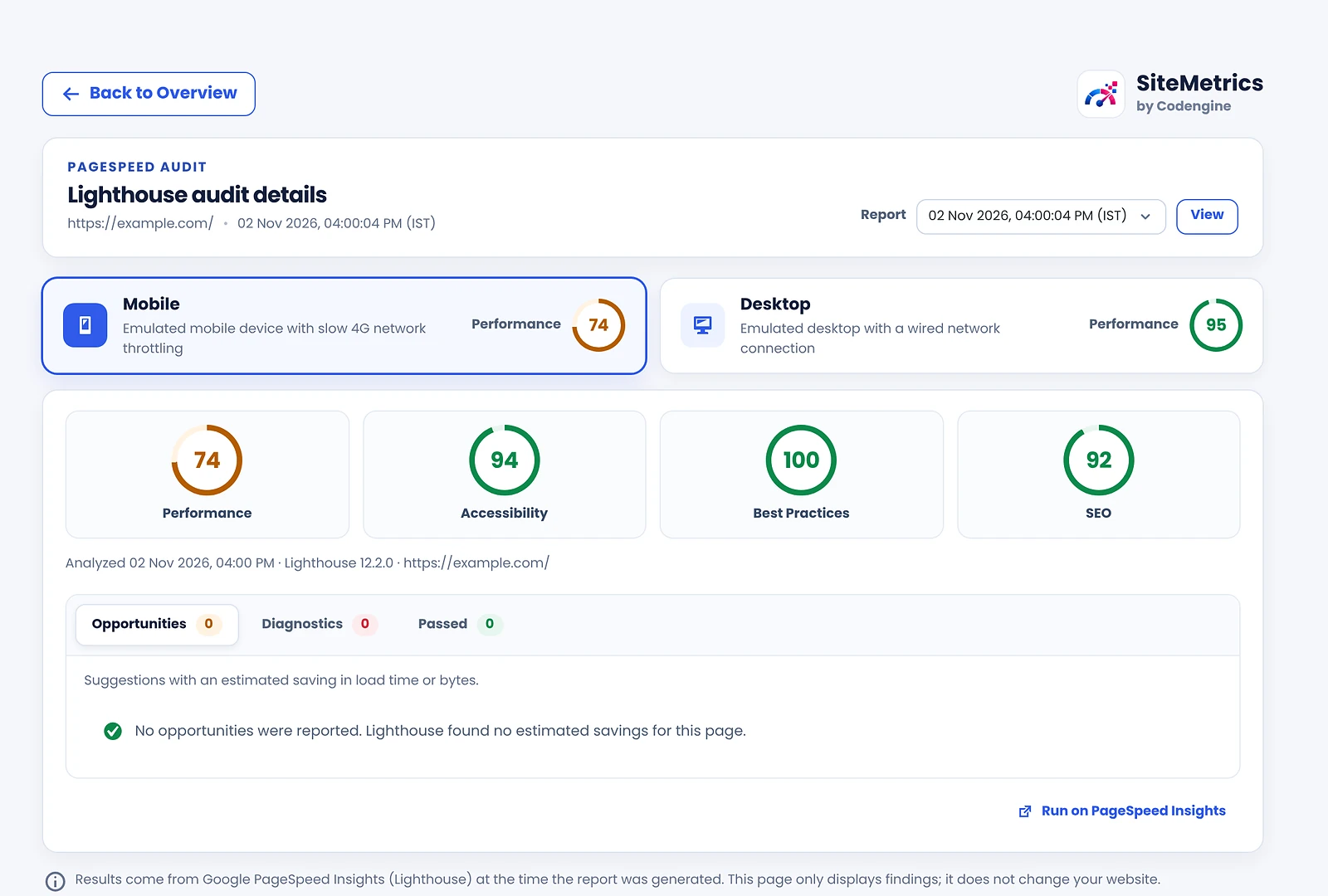
Lighthouse audit details for mobile and desktop: opportunities, diagnostics and passed audits.
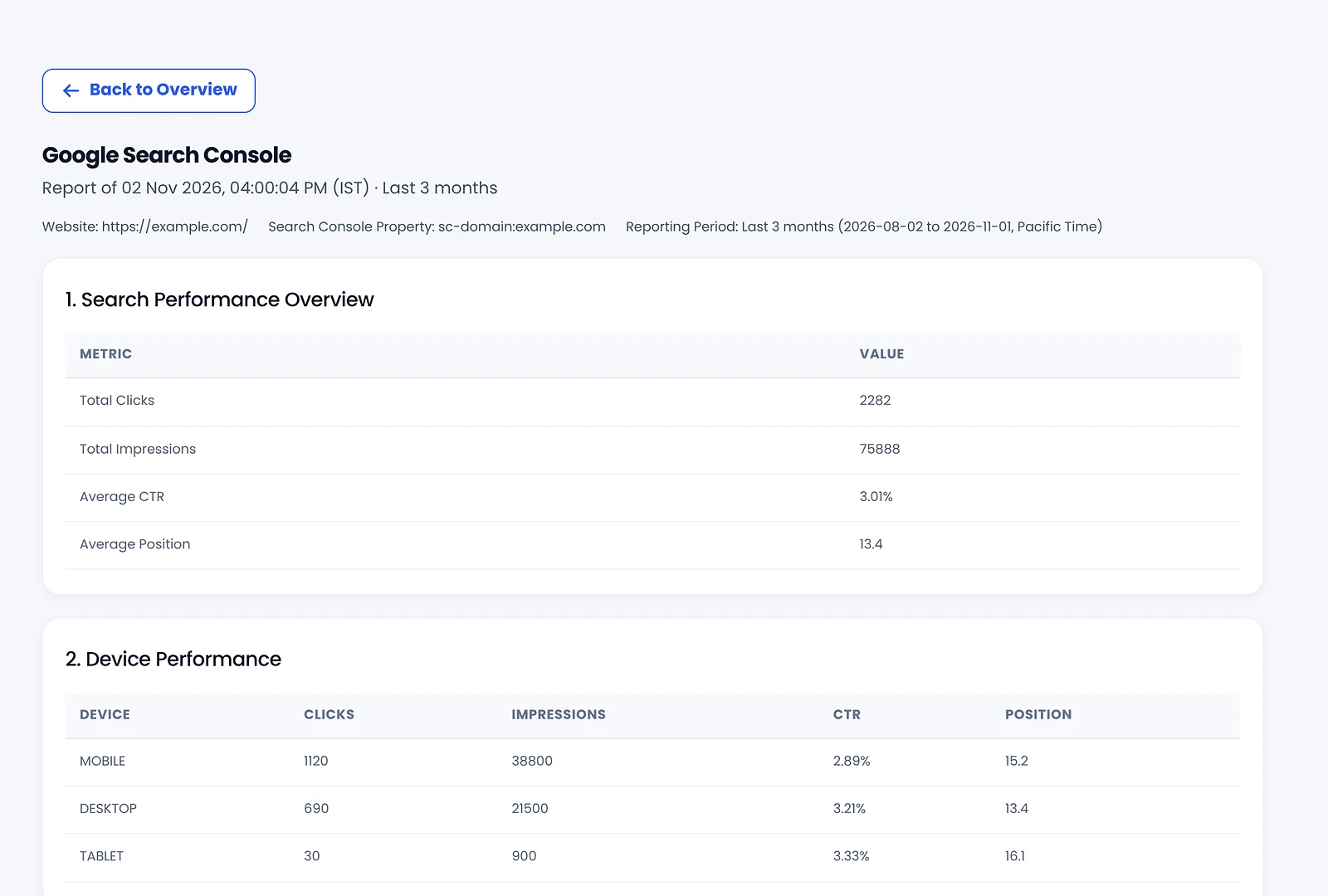
Search Console details: search performance, devices, countries, queries and pages.
Schedule automatic daily, weekly or monthly reports and get notified if one fails.
How it works
From install to insight in four steps

Install & open
Install the free plugin from WordPress.org, activate it, then open SiteMetrics in your admin menu.

Connect your services
Add your PageSpeed key, connect Google for Search Console and GA4, and add an Ahrefs key if you use it.

Generate a report
Click Generate report and choose Excel report or Google Spreadsheet.

Review, compare, schedule
Review the Overview, compare reports over time and turn on automatic reports.
FAQ
Questions, answered
Everything you need to know about the current free release.
Still have a question?
Ask in the official WordPress.org support forum, or open Help & Docs inside the plugin.
What is SiteMetrics by Codengine?
SiteMetrics by Codengine is a free WordPress plugin from CodeNgine Technologies. It collects PageSpeed Insights, Google Search Console, Google Analytics 4 and Ahrefs Site Audit data in one WordPress admin dashboard, with reports you can export to Excel or Google Sheets.
What does the plugin measure?
PageSpeed Insights scores and lab metrics for mobile and desktop; Search Console clicks, impressions, CTR, position, queries, pages and index status; GA4 users, sessions, engagement and channels; and Ahrefs Site Audit Health Score, crawled URLs and errors.
Does it analyse mobile and desktop performance?
Yes. Every report runs a mobile and a desktop PageSpeed Insights analysis of your home page at the same time, and the Overview shows both side by side.
What do I need to connect each service?
PageSpeed Insights needs a free API key from Google Cloud Console. Search Console and GA4 need a one-time Google sign-in with read-only access. Ahrefs needs an API v3 key and a Site Audit project. Each integration is optional, and Help & Docs walks you through every step.
Can reports be exported to Excel or Google Sheets?
Yes. Click Generate report and choose Excel report (.xlsx, no Google account needed) or Google Spreadsheet (needs the optional Google Sheets permission). Each connected integration gets its own tab.
Can reports run automatically?
Yes. Turn on automatic reports in Settings and choose daily, weekly or monthly, the data period and the format. Your five most recent reports are kept, and Compare shows what changed between any two.
Is my Google and Ahrefs data safe?
Yes. Google access is read-only, the optional Sheets permission only opens spreadsheets the plugin creates, and API keys, secrets and tokens are stored encrypted. The plugin does not track your site’s visitors.
How do I access the plugin documentation?
Open SiteMetrics in WordPress admin and click Help & Docs for guides on getting started, connecting each integration, generating and scheduling reports, comparison and troubleshooting. Installation steps are also on the WordPress.org listing.
Where can I install or learn more about the plugin?
Visit the official WordPress.org plugin page to download it and get support. It requires WordPress 5.8 or higher and PHP 7.4 or higher.
Free on WordPress.org
Start reviewing your website’s performance today
Install SiteMetrics by Codengine, connect the services you use and generate your first report in minutes.